
Exploration 03
2022. 1. 11. 17:59
1. 카메라 스티커앱 만들기 첫걸음
스마트폰 시대에 모두가 가지고 있는 얼굴인깃 카메라앱!
2. 사진 준비하기
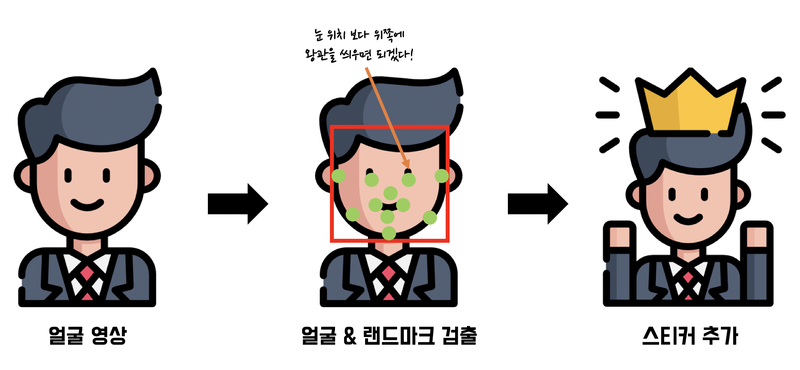
과정
- 얼굴이 포함된 사진을 준비하고
- 사진으로부터 얼굴 영역 face landmark 를 찾아낸다. (landmark를 찾기 위해서는 얼굴의 bounding box를 먼저 찾아야한다.)
- 찾아진 역역으로 부터 머리에 왕관 스티커를 붙여넣는다.
# 이미지 저장하기 (opencv를 통해 저장할 경우 bgr순으로 저장되니 rgb형태로 바꿔줌)
import os
import cv2
import matplotlib.pyplot as plt
import numpy as np
import dlib

my_image_path = os.getenv('HOME')+'/aiffel/camera_sticker/images/image.png'
img_bgr = cv2.imread(my_image_path)    # OpenCV로 이미지를 불러옵니다
img_rgb = cv2.cvtColor(img_bgr, cv2.COLOR_BGR2RGB)
plt.imshow(img_rgb)
3. 얼굴 검출 face detection
dlib의 face detector는 HOG와 SVM을 사용한다.
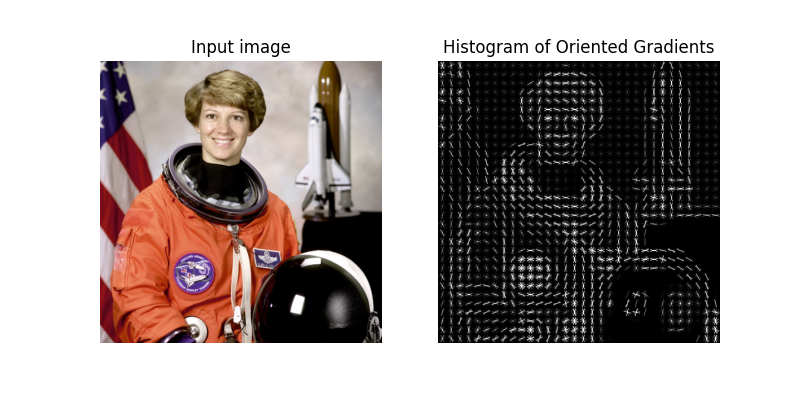
HOG는 이미지에서 색상의 변화량을 나타낸 것이다. HOG는 이미지로부터 물체의 특징만 잘 잡아내는 능력을 갖추고 있다.
SVM은 선형 분류기이다. 한 이미지를 다차원 공간의 한 벡터라고 보면 여러 이미지는 여러 벡터가 된다.
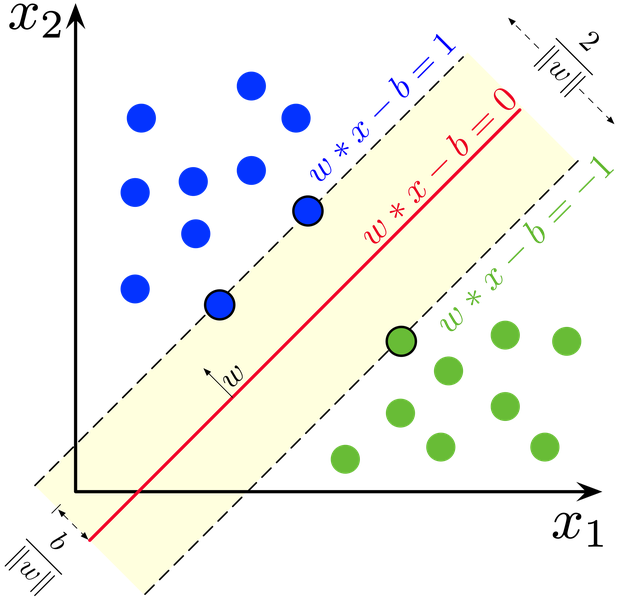
이미지의 색상만을 가지고는 SVM이 큰 힘을 발휘하지 못한다. 하지만 HOG를 통해 벡터로 만들어지면 SVM은 잘 작동하게 된다.
얼굴 검출을 위해 sliding window를 사용한다.
# detector를 선언합니다
detector_hog = dlib.get_frontal_face_detector()

img_rgb = cv2.cvtColor(img_bgr, cv2.COLOR_BGR2RGB)
dlib_rects = detector_hog(img_rgb, 1)   # (image, num of image pyramid)
# 찾은 얼굴 영역 박스 리스트
# 여러 얼굴이 있을 수 있습니다
print(dlib_rects)
for dlib_rect in dlib_rects:
l = dlib_rect.left()
t = dlib_rect.top()
r = dlib_rect.right()
b = dlib_rect.bottom()
cv2.rectangle(img_show, (l,t), (r,b), (0,255,0), 2, lineType=cv2.LINE_AA)
img_show_rgb = cv2.cvtColor(img_show, cv2.COLOR_BGR2RGB)
plt.imshow(img_show_rgb)
plt.show()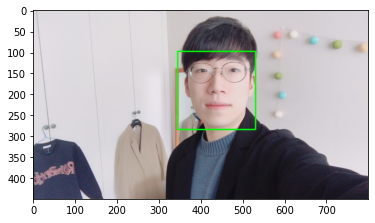
4. 얼굴 랜드마크 face landmark
Object keypoit extimation 알고리즘
1) top-down : bounding box를 찾고 box 내부의 keypoint를 예측
2) bottom-up : 이미지 전체의 keypoint를 먼저 찾고 point 관계를 이용해 군집화 해서 box 생성

Dlib의 제공되는 모델 사용하기
model_path = os.getenv('HOME')+'/aiffel/camera_sticker/models/shape_predictor_68_face_landmarks.dat'
landmark_predictor = dlib.shape_predictor(model_path)

list_landmarks = []

# 얼굴 영역 박스 마다 face landmark를 찾아냅니다
for dlib_rect in dlib_rects:
    points = landmark_predictor(img_rgb, dlib_rect)
    # face landmark 좌표를 저장해둡니다
    list_points = list(map(lambda p: (p.x, p.y), points.parts()))
    list_landmarks.append(list_points)

print(len(list_landmarks[0]))
landmark를 영상에 출력
for landmark in list_landmarks:
    for point in landmark:
        cv2.circle(img_show, point, 2, (0, 255, 255), -1)

img_show_rgb = cv2.cvtColor(img_show, cv2.COLOR_BGR2RGB)
plt.imshow(img_show_rgb)
plt.show()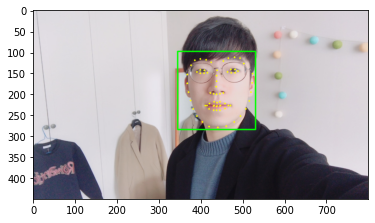
5. 스티커 적용하기
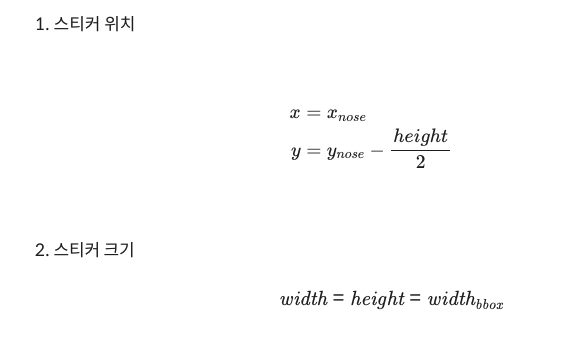
스티커 위치 선정

# 좌표확인
for dlib_rect, landmark in zip(dlib_rects, list_landmarks):
    print (landmark[30]) # 코의 index는 30 입니다
    x = landmark[30][0]
    y = landmark[30][1] - dlib_rect.height()//2
    w = h = dlib_rect.width()
    print ('(x,y) : (%d,%d)'%(x,y))
    print ('(w,h) : (%d,%d)'%(w,h))
'''
>>>
(437, 182)
(x,y) : (437,89)
(w,h) : (187,187)
'''
스티커 이미지 적용하기
sticker_path = os.getenv('HOME')+'/aiffel/camera_sticker/images/king.png'
img_sticker = cv2.imread(sticker_path) # 스티커 이미지를 불러옵니다
img_sticker = cv2.resize(img_sticker, (w,h))

refined_x = x - w // 2
refined_y = y - h
좌표의 값이 음수가 나오면 스티커의 시작점이 얼굴 사진의 영역을 벗어났다는 것이다.

스티커 사진 자르기
if refined_x < 0:
    img_sticker = img_sticker[:, -refined_x:]
    refined_x = 0
if refined_y < 0:
    img_sticker = img_sticker[-refined_y:, :]
    refined_y = 0

sticker_area = img_show[refined_y:refined_y+img_sticker.shape[0], refined_x:refined_x+img_sticker.shape[1]]
img_show[refined_y:refined_y+img_sticker.shape[0], refined_x:refined_x+img_sticker.shape[1]] = \
    np.where(img_sticker==0,sticker_area,img_sticker).astype(np.uint8)
수정된 이미지 출력
plt.imshow(cv2.cvtColor(img_show, cv2.COLOR_BGR2RGB))
plt.show()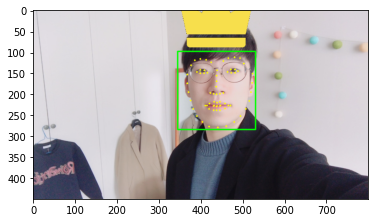
박스와 landmark 없애기
sticker_area = img_bgr[refined_y:refined_y +img_sticker.shape[0], refined_x:refined_x+img_sticker.shape[1]]
img_bgr[refined_y:refined_y +img_sticker.shape[0], refined_x:refined_x+img_sticker.shape[1]] = \
    np.where(img_sticker==0,sticker_area,img_sticker).astype(np.uint8)
plt.imshow(cv2.cvtColor(img_bgr, cv2.COLOR_BGR2RGB))
plt.show()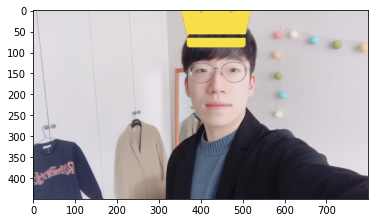
프로젝트
https://github.com/Rogan-J/Aiffel_project/blob/main/Exploration/project/Exploration03.ipynb
'AIFFEL > exploration' 카테고리의 다른 글
| Exploration 06 (0) | 2022.01.20 |
|---|---|
| Exploration 05 (0) | 2022.01.18 |
| Exploration 04 (0) | 2022.01.13 |
| Exploration 02 (0) | 2022.01.06 |
| Exploration 01 (0) | 2022.01.04 |